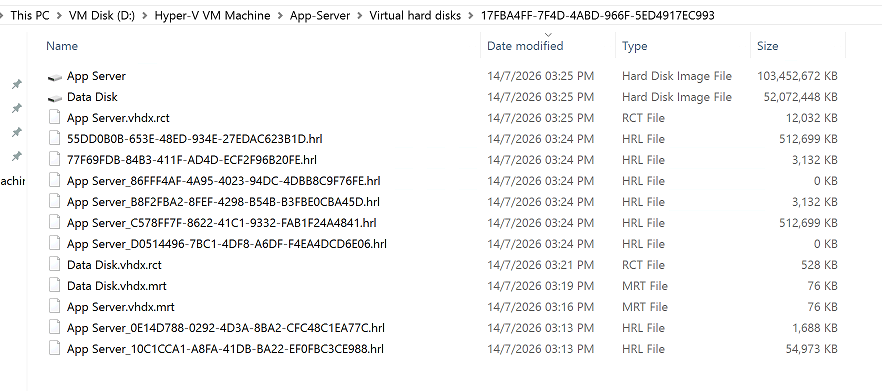
FAQ - We have configured an incremental backup job to run every hour. After each backup cycle, new files with the extensions .RCT, .MRT, and .AVHDX are created and remain in the virtual machine storage location. These files continue to accumulate with every scheduled backup, resulting in a continuous increase in storage consumption. We would like to confirm whether this is expected behavior or if the backup checkpoints are not being merged or cleaned up correctly. 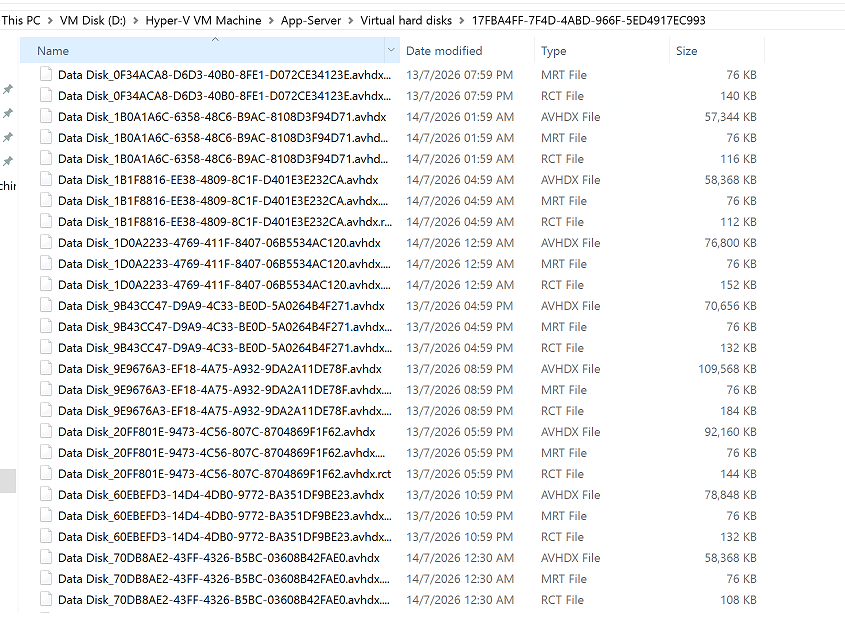
Solutions -
After performing hourly incremental backups, residual .RCT, .MRT, and .AVHDX files in your Hyper-V storage continue to accumulate. This not only consumes valuable storage space but also impacts other backup schedules (such as Acronis) in your environment. We take the impact of this issue on your maintenance operations very seriously.
Problem Analysis and Root Cause
In a Hyper-V environment, .RCT (Resilient Change Tracking) and .MRT files are essential mechanisms used by Windows to track disk changes. These files are typically managed automatically by the system once a backup is completed and merged.
According to our investigation, the inability to clear or merge these files is often related to the Windows User Profile Service. When an administrator logs in and subsequently logs out of the application server, Windows may forcefully unload the user's registry. This can cause background backup components (such as COM+ components) to lose necessary access permissions, preventing the post-backup cleanup process from completing successfully. You can refer to the similar principles mentioned in this IBM technical document.
Recommended Solution
To ensure that the file cleanup process is triggered correctly after a backup, we recommend adjusting the Group Policy (GPO) settings to prevent Windows from forcefully unloading the registry upon user logout. Please follow these steps:
- Log in to your Hyper-V application server with administrator privileges.
- Press
Win + R, typegpedit.msc, and press Enter to open the "Local Group Policy Editor." - Navigate to the following path:
Computer Configuration->Administrative Templates->System->User Profiles. - In the right pane, locate and double-click: "Do not forcefully unload the user registry at user logoff".
- Change the setting from "Not Configured" to "Enabled".
- Important Step: To ensure the settings take effect and release currently locked files, please schedule a brief downtime to restart the server.
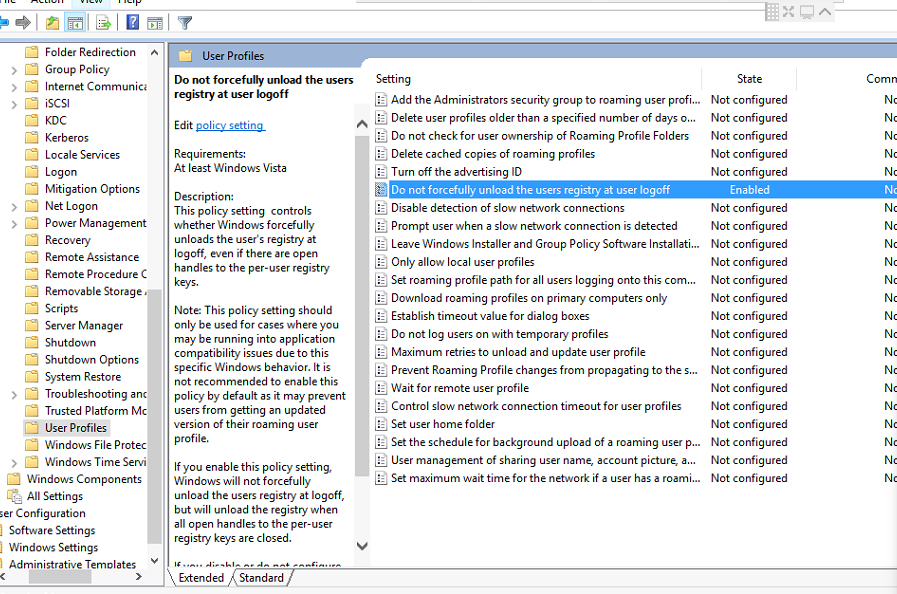
After completing the above settings and restarting the server, please observe the next few hourly backup cycles. Under normal conditions, Hyper-V should be able to correctly merge and remove unnecessary checkpoint files after the backup is complete.
Result-